Manage Procest settings
The Administration settings → Procest page is the single pane for everything you configure once and then forget: the version banner, the OpenRegister mapping, the ZGW API mapping, GIS map layers, and the AI-assisted processing toggles.
Goal
By the end you will have opened the Administration settings page, re-imported the Procest configuration, confirmed the register and schema mapping, and recognised the ZGW mapping table.
Prerequisites
- Administrator role on the Nextcloud instance.
- The OpenRegister app installed and reachable.
Steps
-
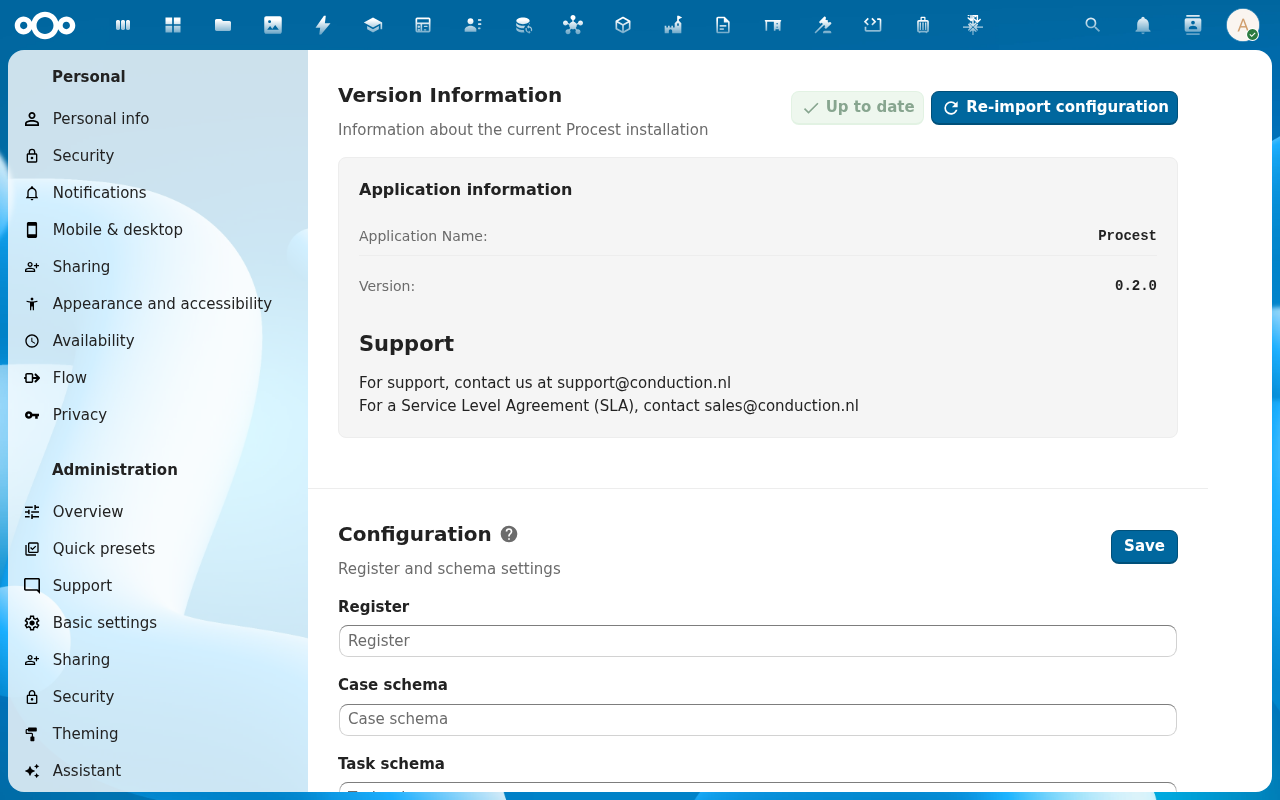
Open Administration settings → Procest (left navigation under Administration). The header reads Administration settings: Procest and the body has five sections: Version Information, Configuration, Case Type Management, Map Layers, ZGW API Mapping, AI-Assisted Processing.
-
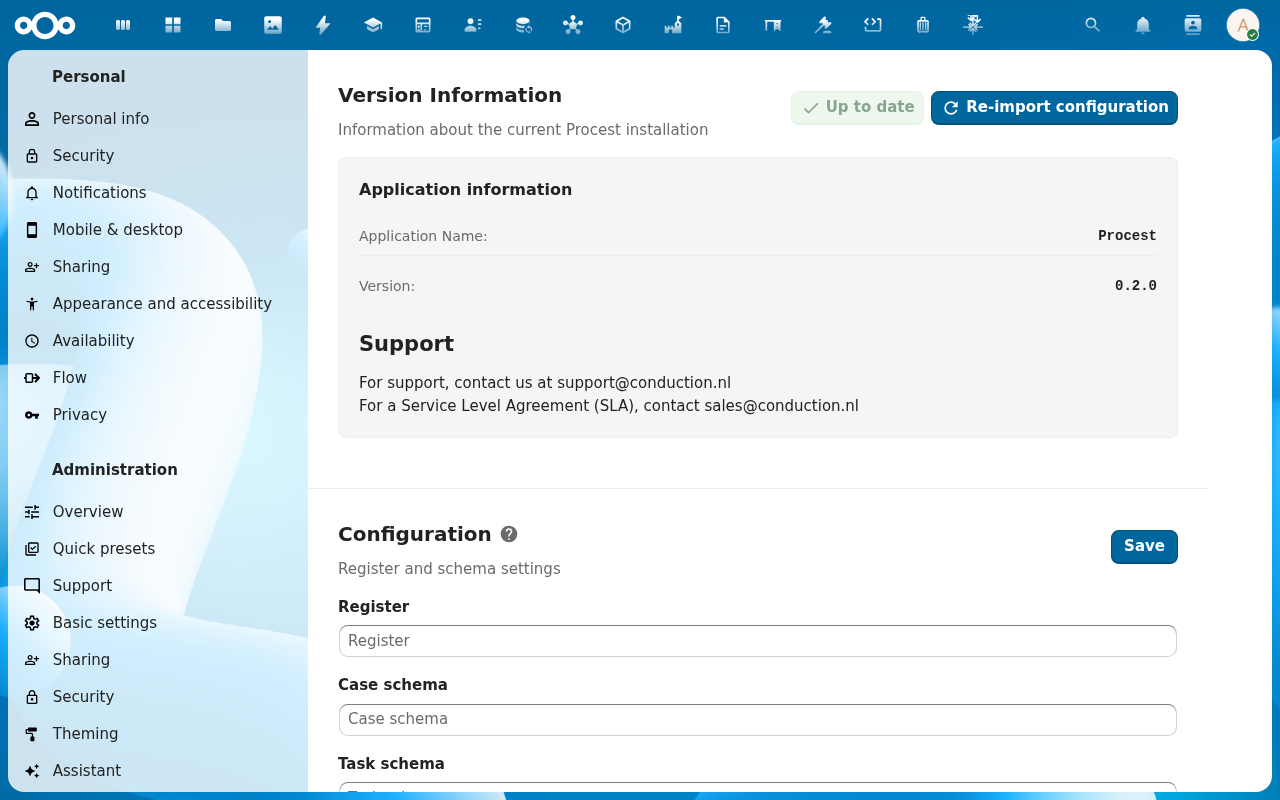
The Version Information card shows the installed version (e.g. Procest 0.2.0) and an Up to date badge. Click Re-import configuration to (re-)run the OpenRegister import: needed on first install and whenever a Procest release bumps the schemas. Confirm the success toast.
-
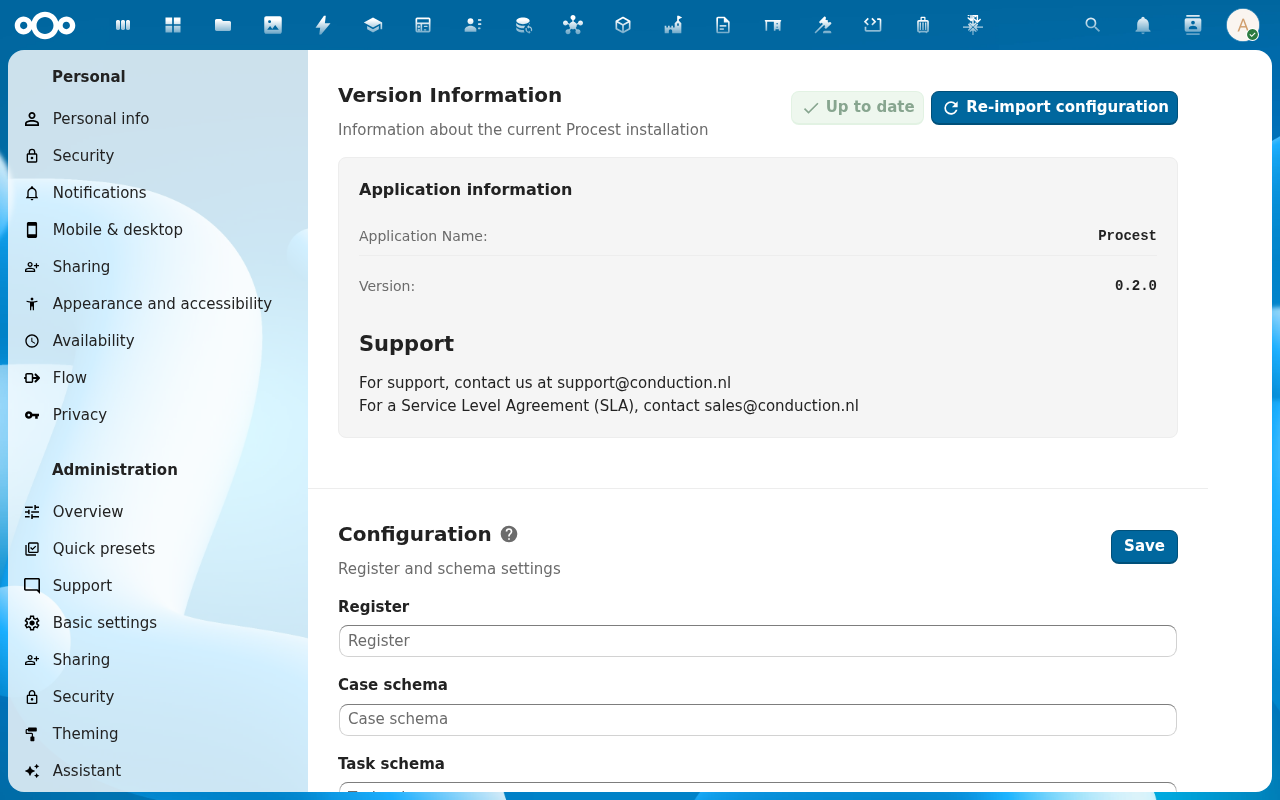
Scroll to Configuration. Pick the Register (e.g. Procest) from the first dropdown: the rest of the fields (Case schema, Task schema, Status schema, Role schema, Result schema, Decision schema, Case type schema, Status type schema) auto-fill from the register. Click Save to persist.
-
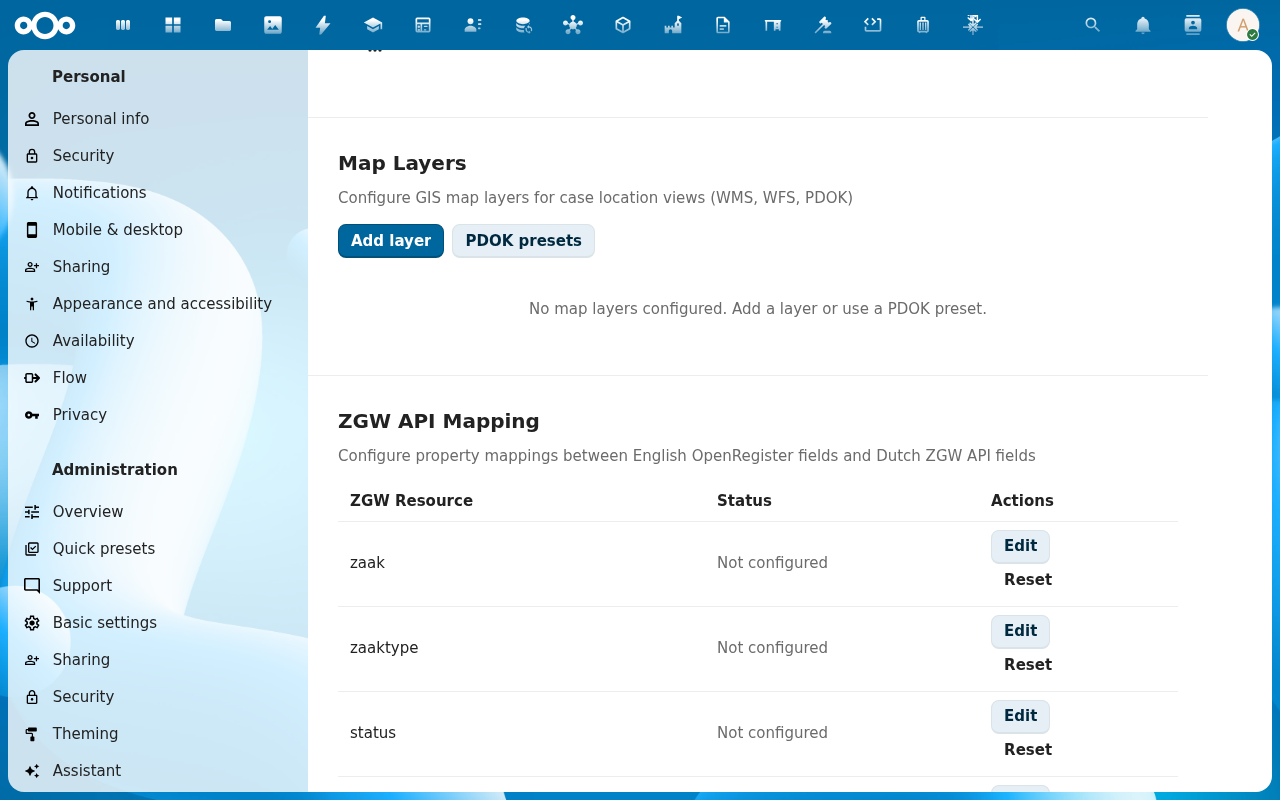
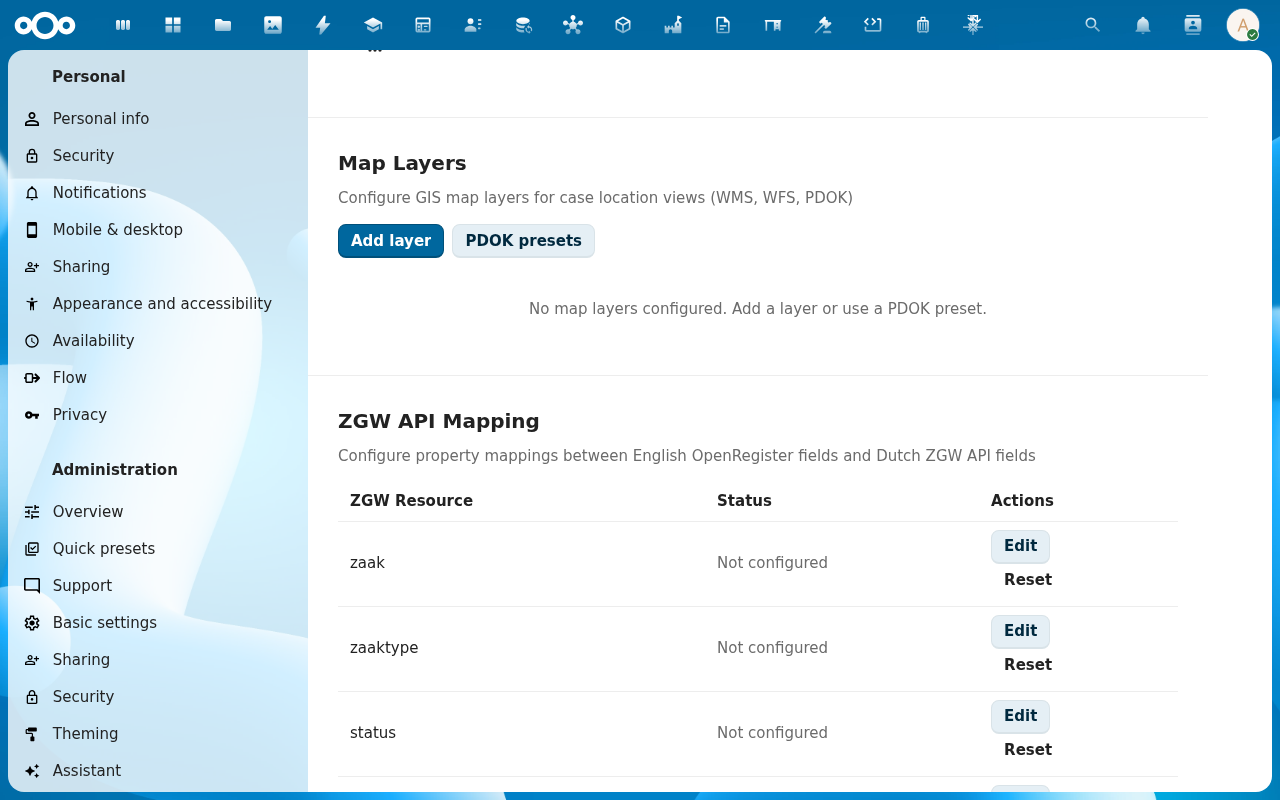
Scroll to ZGW API Mapping. Each row maps an OpenRegister schema onto a Dutch ZGW API resource (zaak, zaaktype, status, statustype, resultaat, resultaattype, rol, roltype, eigenschap, besluit, besluittype, informatieobjecttype). Click Edit to map one; Not configured rows are skipped by the ZGW API endpoints.
-
Scroll to Map Layers and AI-Assisted Processing. Use Add layer / PDOK presets to attach WMS/WFS layers for the case-location map; the AI section toggles document classification, extraction, Q&A, summarisation, routing, and decision-support features (each runs against the configured LLM endpoint).
Verification
You have configured Procest correctly when: Version Information shows Up to date, every dropdown under Configuration has a value (no empties), Case Type Management loads its list, and ZGW API Mapping has at least zaak / zaaktype / status / statustype configured.
Common issues
| Symptom | Fix |
|---|---|
| Re-import configuration errors out | Open Nextcloud → Settings → Logs and read the OpenRegister ImportHandler errors; usually a schema with an invalid type: fix the configuration JSON and re-run. |
| Schema dropdowns are empty | The register is not imported yet: click Re-import configuration first, then refresh. |
| ZGW mapping table shows only Not configured | Map each row by hand or via the Reset button to re-populate defaults. The zaak row is the minimum needed for the ZGW API. |
| Map layers section "No map layers configured" warning | Click PDOK presets to add the standard Dutch PDOK layers in one click. |
| AI features show but never respond | The AI endpoint is not configured at the server level: check the Nextcloud Assistant / LLM settings. |
Reference
- Administration: the page this tutorial documents.
- Admin settings: field reference.
- Configure case types and workflows: the next thing to configure once settings are in place.