Open and read a case
How to find a case, open it, and recognise the parts of the detail view: the header, the status timeline, and the sidebar tabs (Tasks, Documents, Participants, History, …).
Goal
By the end you will have opened the Cases list, located a case by search or filter, opened its detail view, and read the status, deadline, and confidentiality badges on the header.
Prerequisites
- Completed Open Procest for the first time.
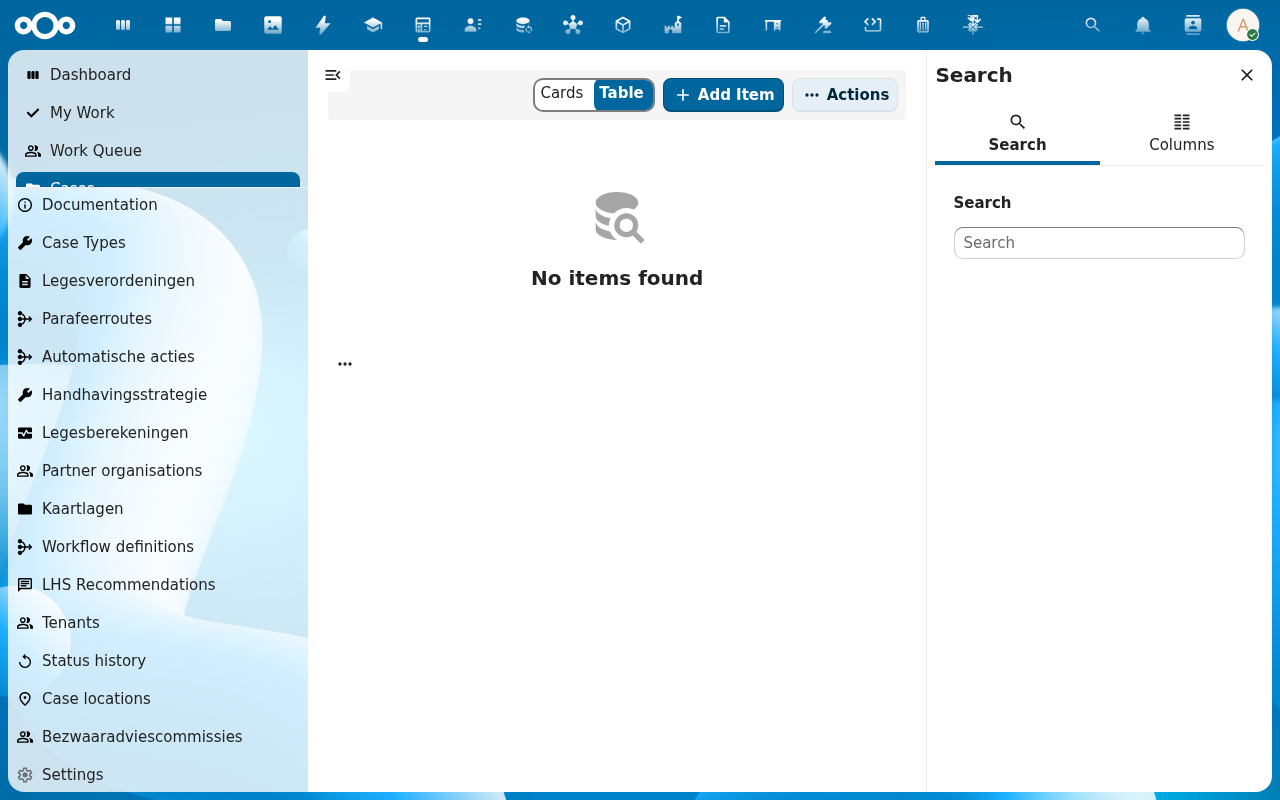
- At least one case in the register: otherwise the list shows No items found.
Steps
-
From the Procest navigation, click Cases. The list view opens with a Cards / Table toggle.
-
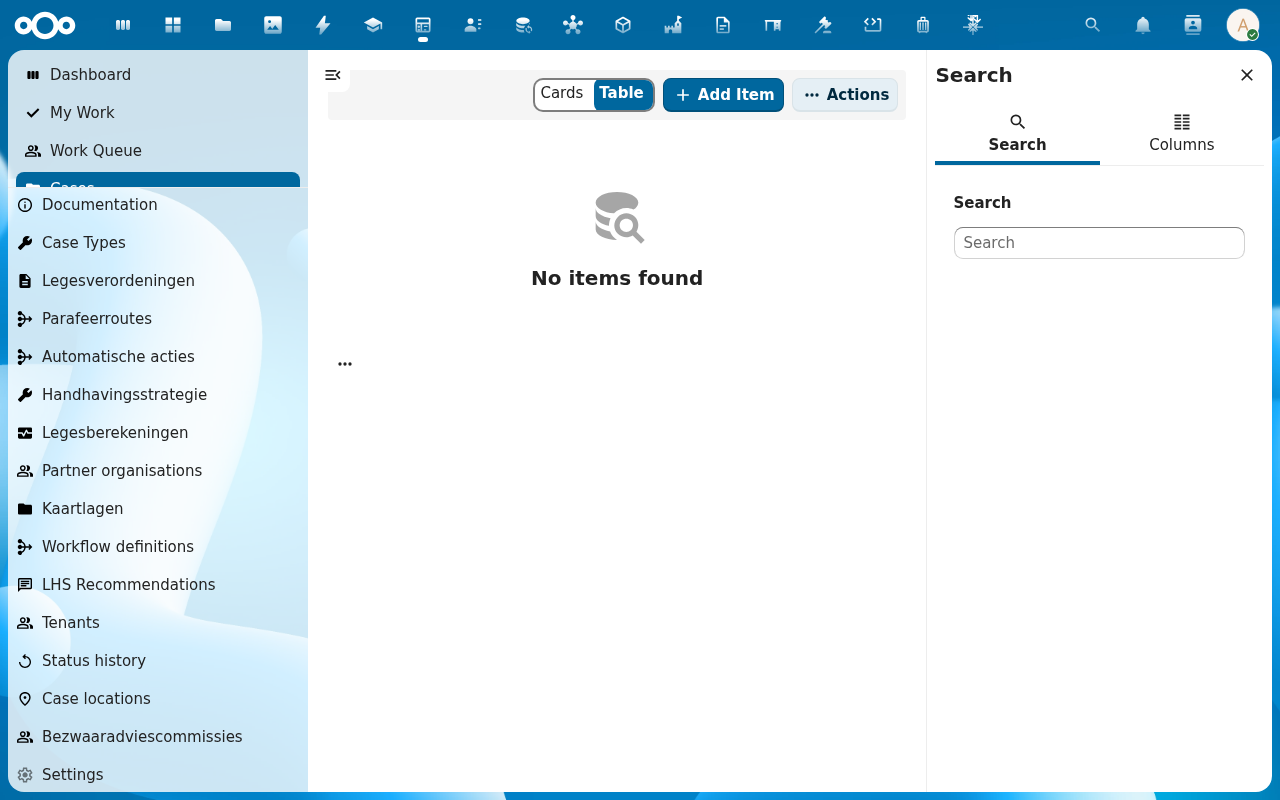
Switch between Cards and Table with the radio toggle. Cards show the rich preview (status pill, deadline, handler avatar). Table is denser: better for scanning a long list. Use the search row at the right to filter by title, identifier, or status.
-
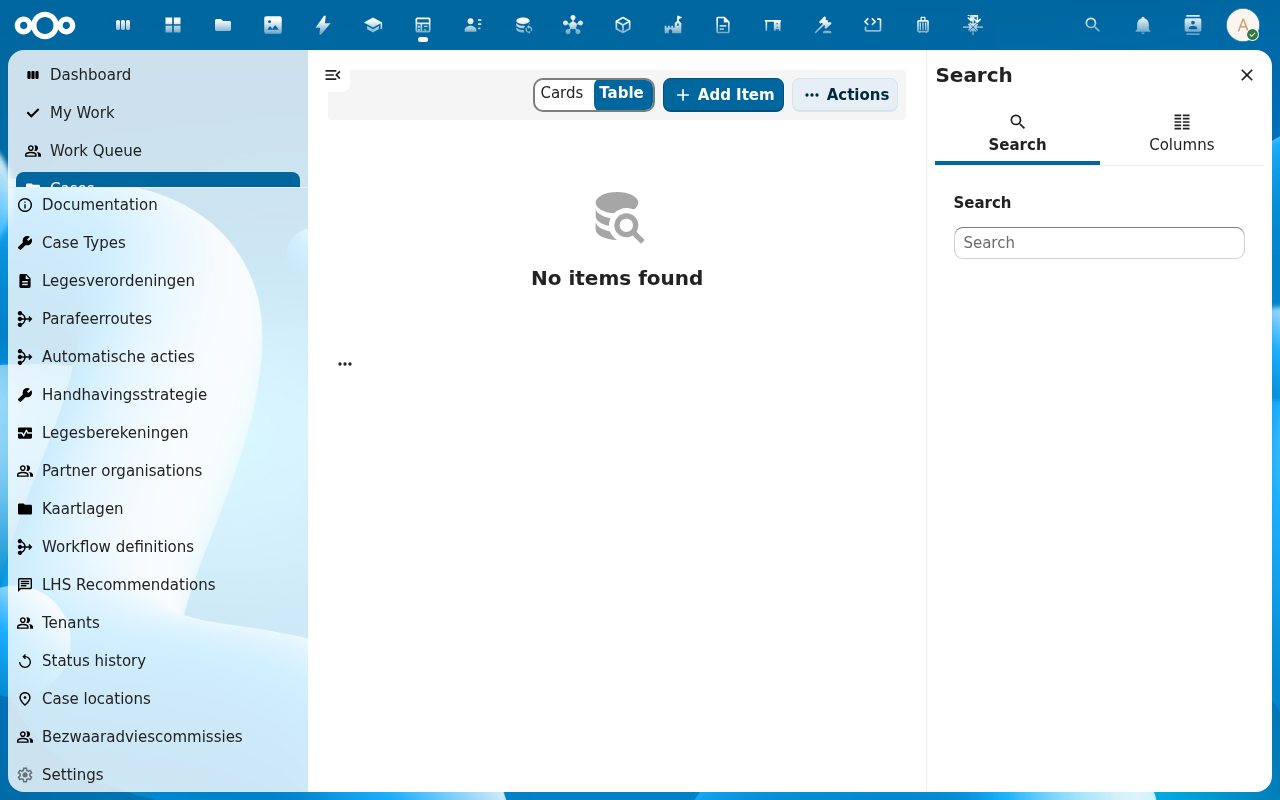
Click a row (or a card) to open the case. The detail view loads with a header band: case title, identifier, status pill, deadline countdown, confidentiality badge: and a sidebar on the right.
-
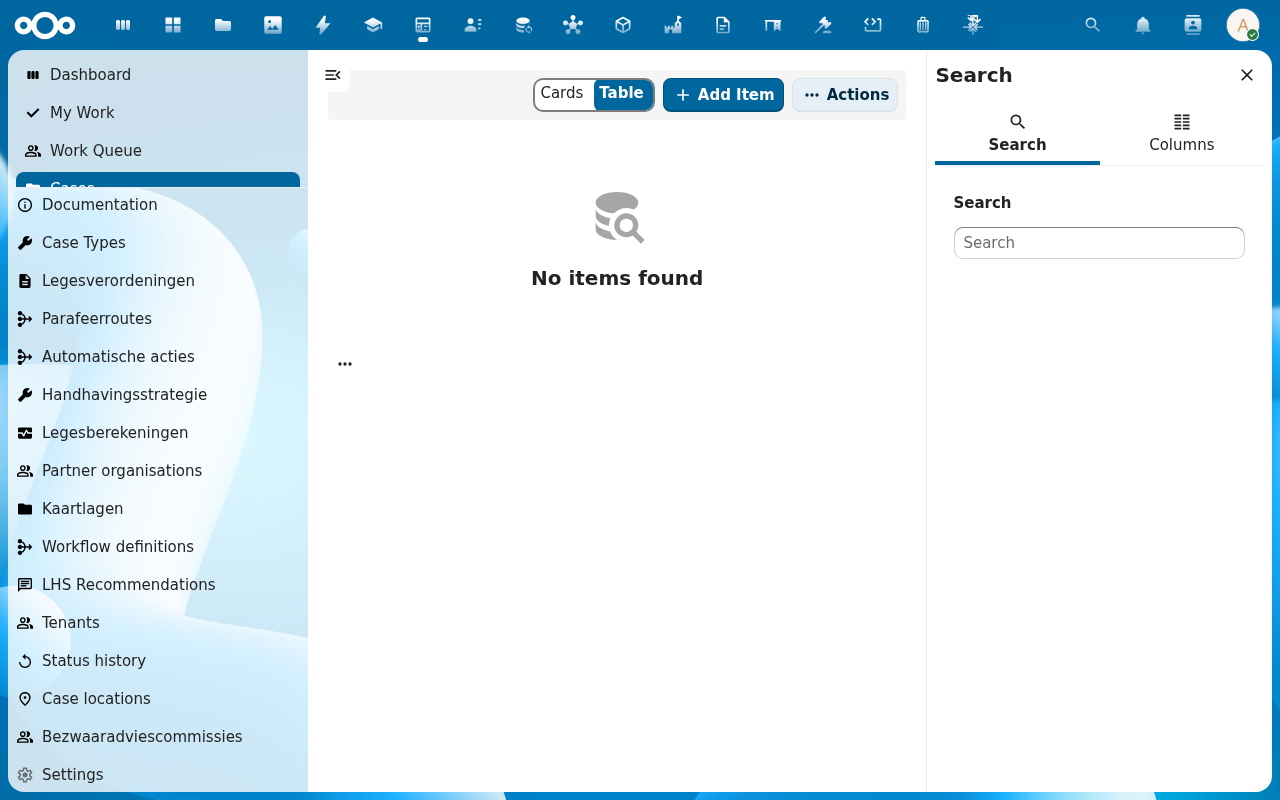
Walk the sidebar tabs. Summary holds the case fields. Tasks lists everything assigned to roles on the case. Documents shows attached files. Participants lists who plays which role. History is the audit trail of every status change and edit. Comments is the in-case discussion thread.
Verification
You are reading the case correctly when: the header shows a non-empty status pill, the deadline countdown is either a date or "No deadline", and the sidebar tabs respond to clicks without an error.
Common issues
| Symptom | Fix |
|---|---|
| Detail view opens but body is empty | The case schema fields are not mapped: see Manage Procest settings and re-import the configuration. |
| Status pill is blank | The case has no current status; open the History tab to confirm a starting status was set, or transition it via Move a case through its workflow. |
| Search field returns nothing | Search is case-sensitive by default; clear filters with the X in the search row. |
Reference
- Case dashboard view: the layout convention used by the case detail page.
- Case management: the model behind cases and their statuses.