Track deadlines and lead times on the dashboard
The Procest dashboard is the deadline radar. Three widgets do most of the work: Deadline Alerts (cases nearing or past their statutory term), Task Due Reminders (tasks crossing their due date), and Stalled Cases (cases that have not changed status in too long).
Goal
By the end you will have read the three deadline widgets on the dashboard, jumped from a widget into the underlying case, and recognised the colour coding (green / amber / red).
Prerequisites
- Completed Open Procest for the first time.
- Cases with deadlines configured on their case-type (deadlines without a configured case-type are not tracked).
Steps
-
Open the Procest dashboard. The widget shelf renders along the page: Cases by Status, Cases by Type, My Work, Deadline Alerts, Task Due Reminders, Stalled Cases, Case Map.
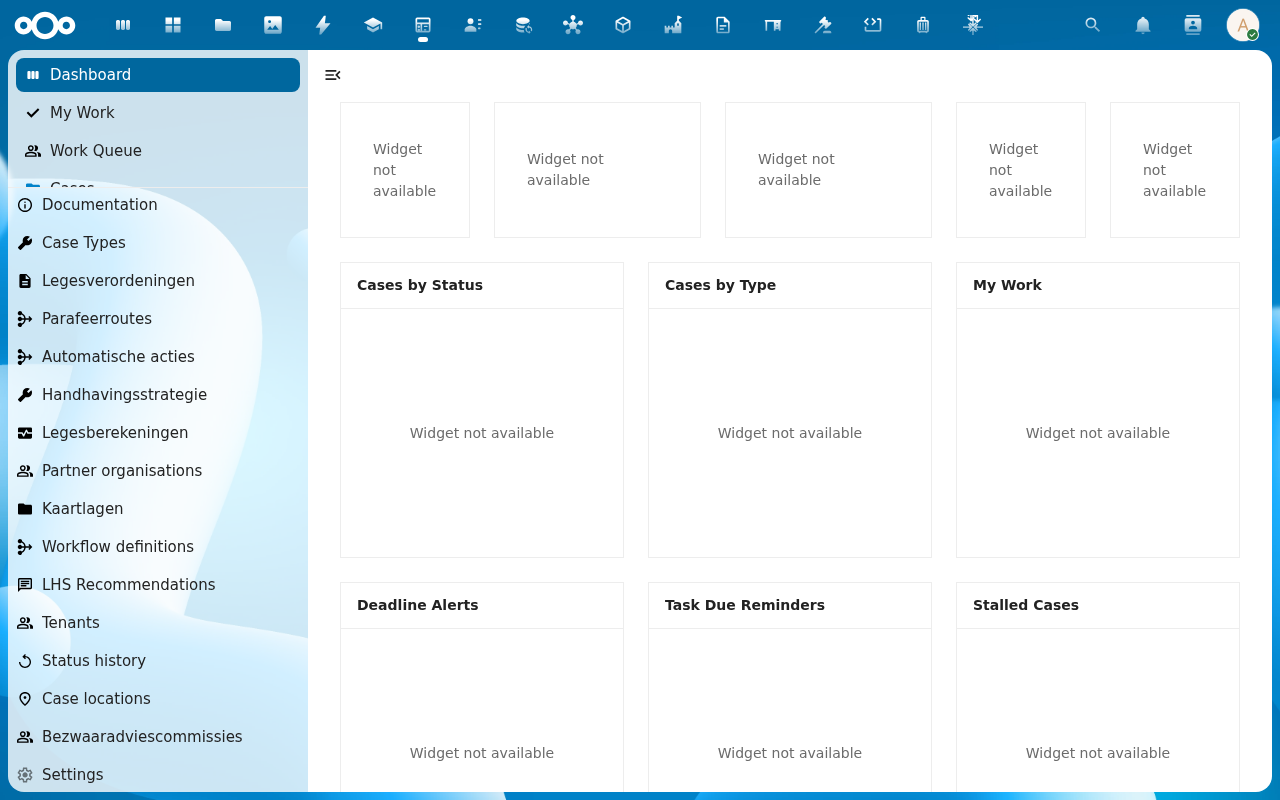
-
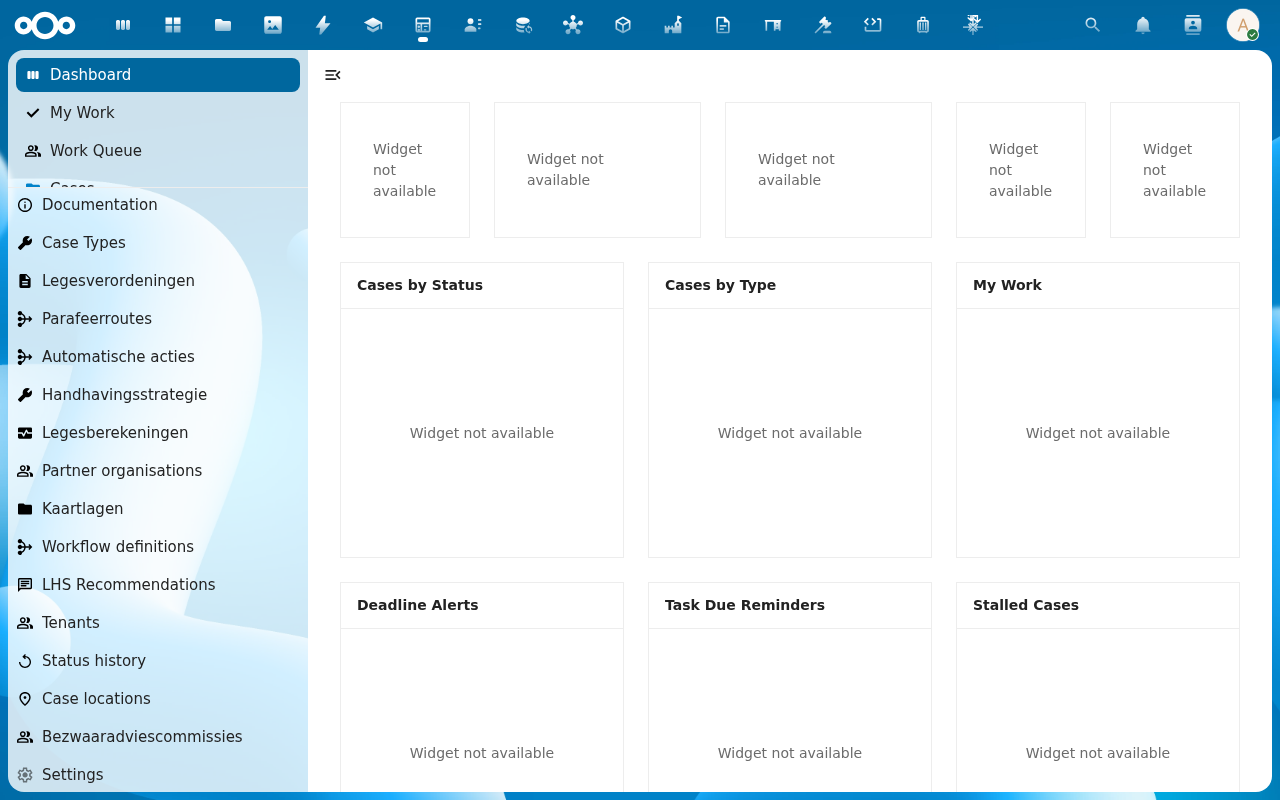
Find Deadline Alerts. Each row is a case approaching or past its statutory deadline, colour-coded: green is comfortably ahead, amber is within the warning window, red is overdue.
-
Click a row in Deadline Alerts. The case detail view opens with the deadline countdown front-and-centre in the header.
-
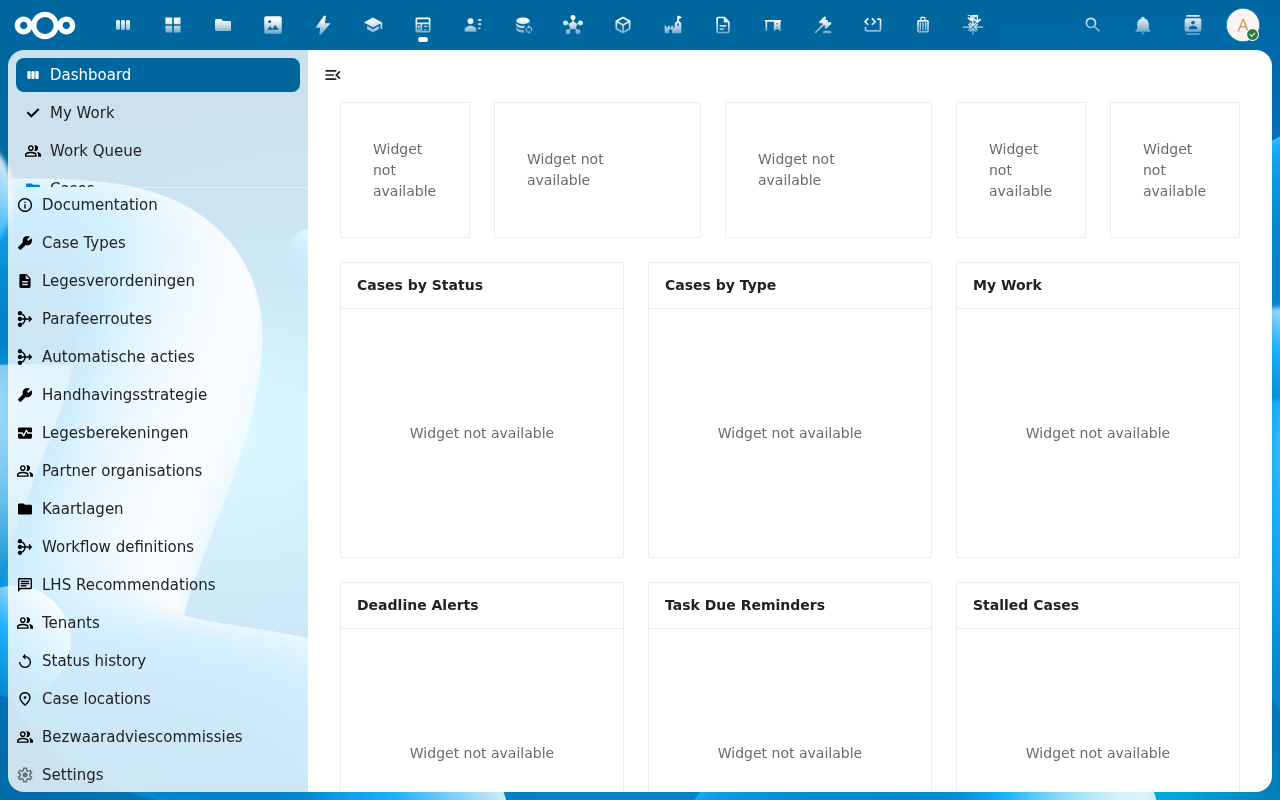
Back on the dashboard, scan Task Due Reminders for tasks crossing their own due date (separate from the case deadline) and Stalled Cases for cases whose status has not advanced past the configured threshold.
Verification
You have the dashboard set up correctly when: at least one of the three deadline widgets shows rows (or a clean No items state: not a load error), the colour coding matches the deadline windows, and clicking a row navigates to the case.
Common issues
| Symptom | Fix |
|---|---|
| All three widgets read Widget not available | The register is not connected: see Manage Procest settings. |
| Deadlines never go amber or red | The case-type has no deadline configured, or the warning thresholds are too short: adjust under Case Types. |
| A case is overdue but missing from Deadline Alerts | The case-type's deadline field is not mapped to the Case schema; an admin checks the schema mapping. |
Reference
- Case management: deadlines on the case model.
- Configure case types and workflows: setting per-status durations.