Configure case types and workflows
A case type is the template for every case of one kind: its statuses, allowed transitions, per-status deadlines, required documents, and default participants. This tutorial creates one from scratch.
Goal
By the end you will have created a new case type, defined its status lifecycle, configured a deadline, and verified that a new case picks up the configuration.
Prerequisites
- Administrator role on the Nextcloud instance.
- The Procest register imported (see Manage Procest settings).
- A clear idea of the statuses your workflow needs.
Steps
-
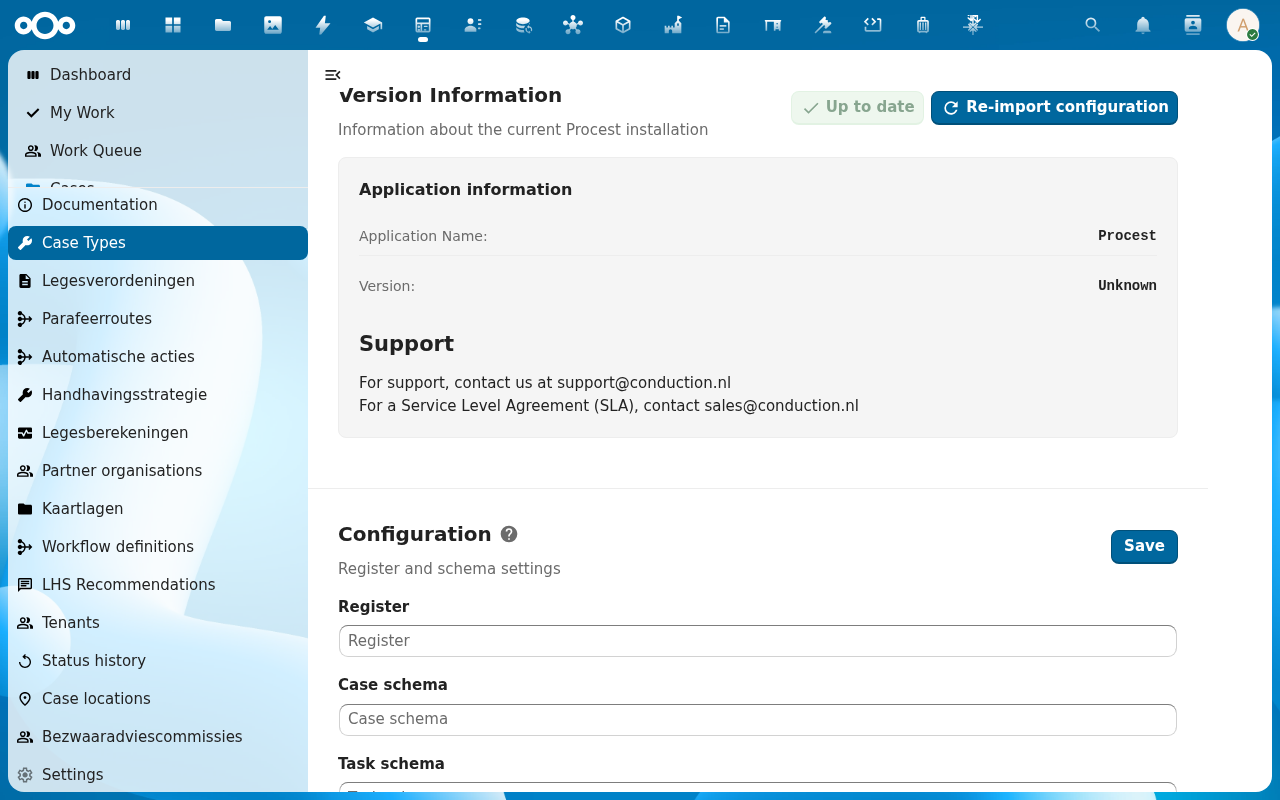
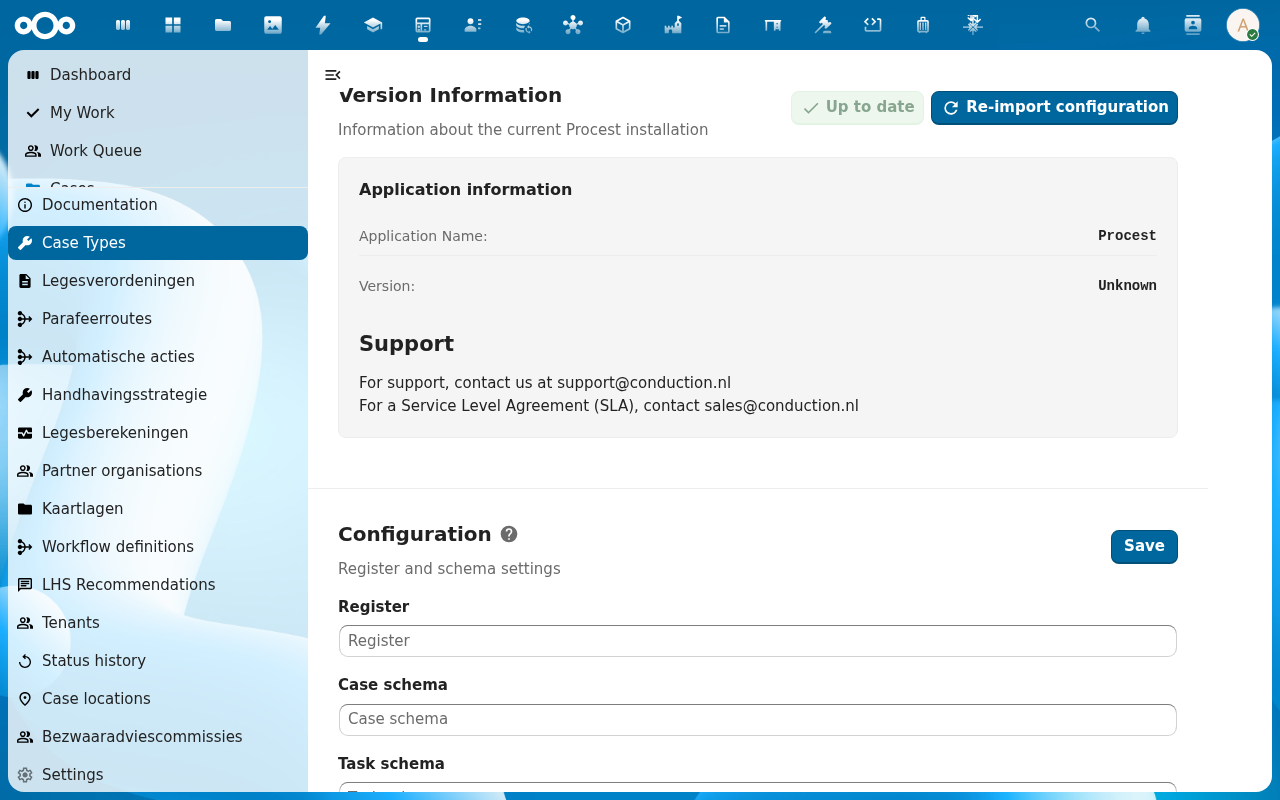
From the Procest navigation, scroll to the configuration block and click Case Types. The list view opens with the Cards / Table toggle and an Add Item button. (Case types are also reachable from Administration settings → Procest under Case Type Management.)
-
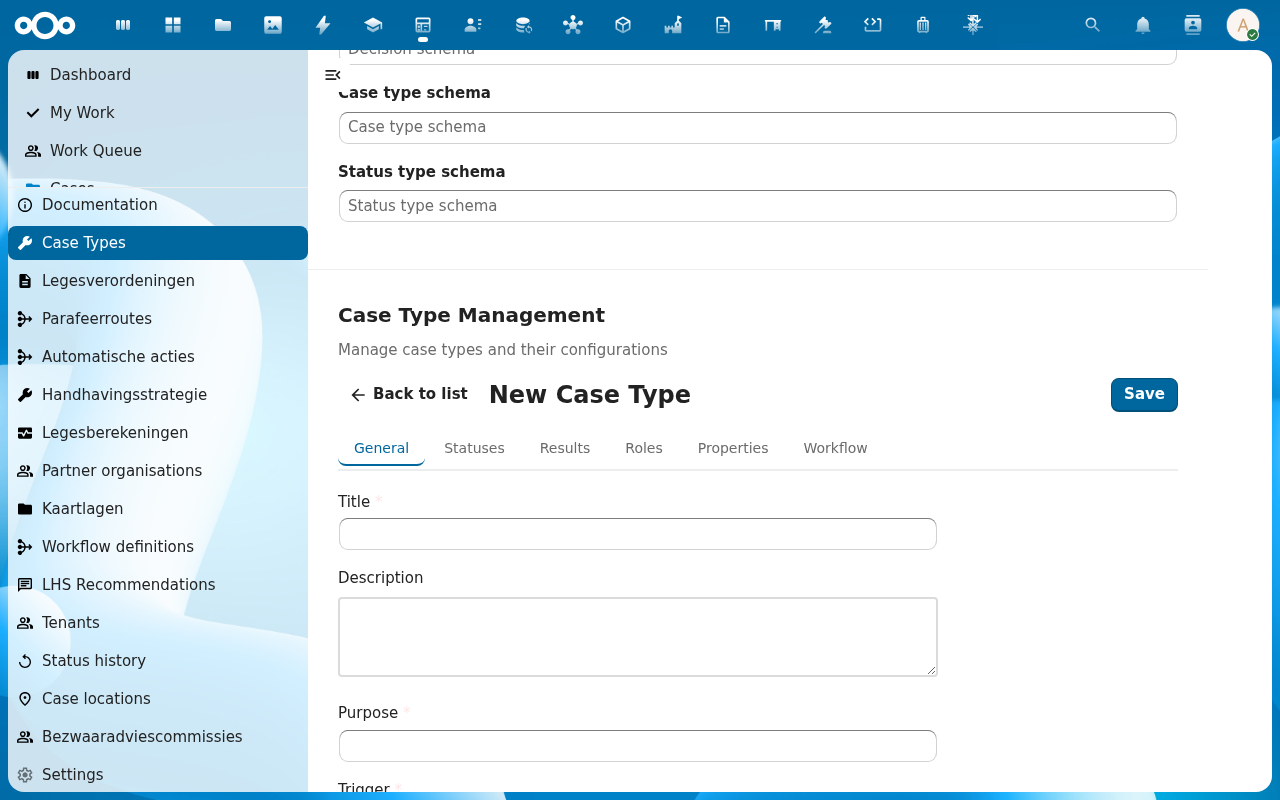
Click Add Item. The case-type dialog opens. Fill the basics: Name (e.g. Vergunningaanvraag), Identification (slug), Description, Default confidentiality, Maximum lead time (in days).
-
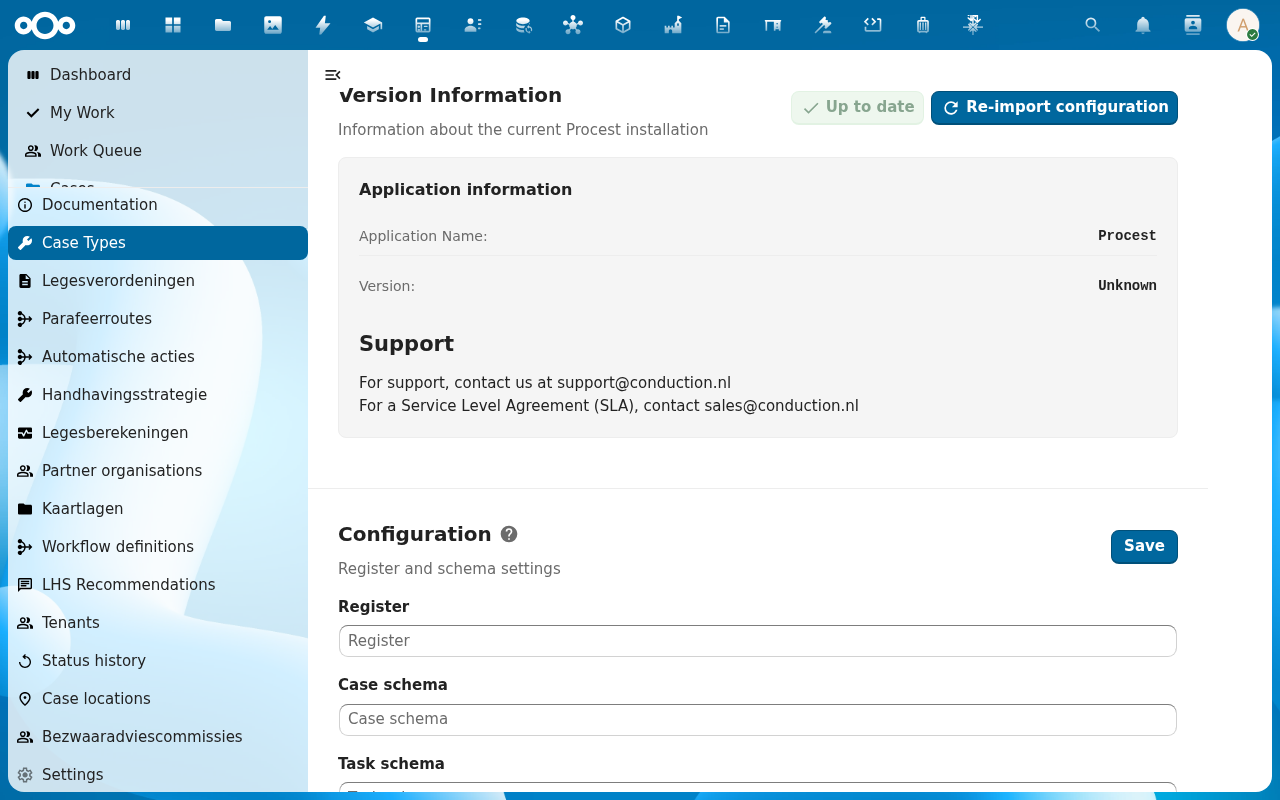
Open the Statuses tab on the dialog. Add the statuses your workflow needs (Open, In behandeling, Wachten op aanvrager, Beslissen, Afgerond). For each status set the Allowed next statuses: only those will appear in the transition dialog on a case.
-
Open the Deadlines tab. Set a per-status duration (e.g. In behandeling: 30 days) and the Warning threshold (e.g. 7 days). Cases of this type re-base their deadline countdown on each transition.
-
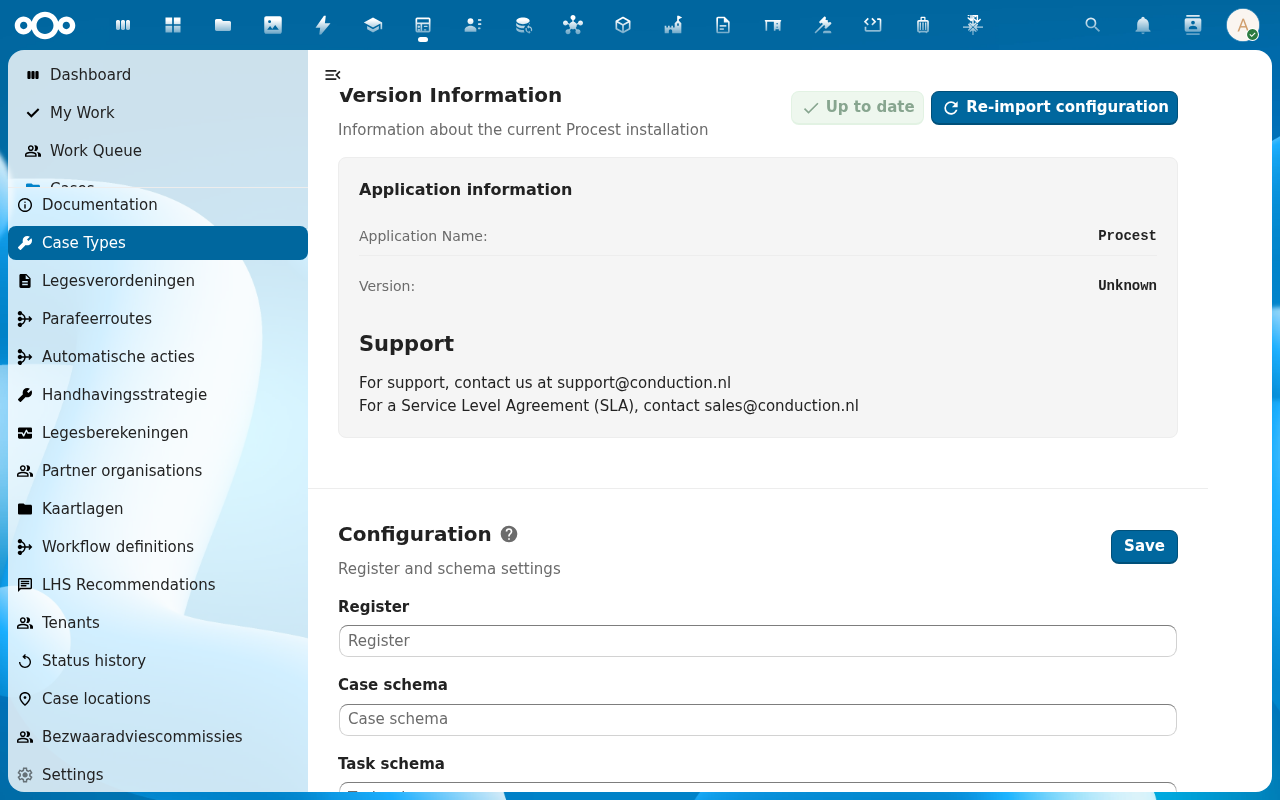
Open the Documents tab. Add the document types that must be present at each status: these power the document checklist on the case detail. Save the whole case type with Save.
Verification
You have configured the case type correctly when: it appears in the Case Types list with the status count you defined, creating a new case from Cases → Add Item and picking this case-type produces a case with the first status pre-set, and the case's deadline countdown reflects the case-type's per-status duration.
Common issues
| Symptom | Fix |
|---|---|
| Add Item opens a dialog with no form fields | The Case-type schema is not mapped: re-import configuration via Manage Procest settings. |
| Status transitions on a new case do not match what you configured | The status mapping on the case-type may have been saved before the status schema was created; reopen and save again. |
| Deadline never warns | The warning threshold is larger than the duration, or the case-type field is not mapped to the Case schema. |
| Document checklist on the case is always empty | Document types live in a separate register; confirm the informatieobjecttype mapping under ZGW API Mapping is configured. |
Reference
- Case management: model that case types drive.
- Automatic actions: task generation tied to case-type transitions.